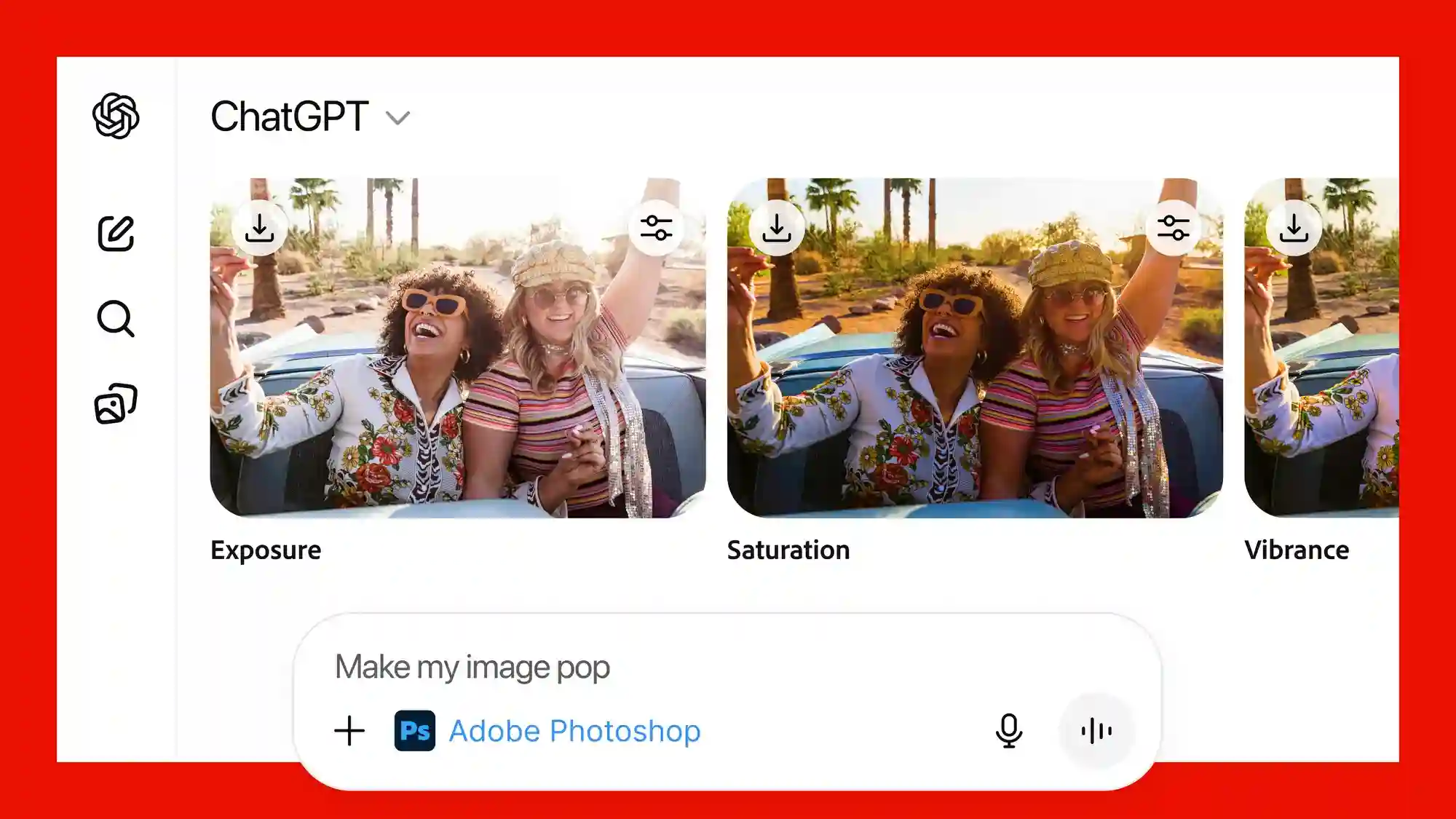

I’ve been using ChatGPT every day to clean up emails, tweak images, and even fix PDF layouts — and it’s surprising how much you can actually edit by simply chatting. “Edit Anything Through ChatGPT” sounds bold, but the platform’s steady build-out of text, image, and app integrations means you can often get high-quality edits without switching tools. In this post I’ll walk you through what’s possible today, how I use it, and simple tips to get reliable results — so you can try editing anything through ChatGPT with confidence.
What “Edit Anything Through ChatGPT” really means
When we say “Edit Anything Through ChatGPT” we’re talking about three practical areas: text (documents, emails, code), images (cropping, background removal, simple retouches), and PDFs/design files (merge, annotate, or adjust). OpenAI and partners have added features and plugins that let ChatGPT call real editing tools or use image-editing models under the hood. Recently, major creative apps like Adobe’s Photoshop and Acrobat have been made available inside ChatGPT, letting users request image or PDF changes right in chat.
How I use ChatGPT to edit things (real, simple steps)
- Text edits: Paste a paragraph and ask for a tone shift, tighter wording, or grammar fixes. Add instructions like “make it friendlier, under 40 words,” and ChatGPT will return alternate versions. This is my go-to for quick email rewrites.
- Code tweaks: Paste the snippet and say what’s failing. ChatGPT will suggest corrections or refactors. Always run tests after — never trust blind edits.
- Images & PDFs: Drag or upload your file into ChatGPT (or use an integrated app/plugin) and describe the change: “Remove the background,” “blur this face,” or “merge these two PDFs.” Recent integrations and image-edit endpoints make these edits smoother.
Tips for better edits
Be explicit. Instead of “make this better,” try “shorten to three sentences, keep the key point, and use casual tone.” For images, include exact details — e.g., “remove the person on the left and extend the sky.” If you need a certain format (Word, PDF, PNG), say so. When using plugins (Google Docs or Adobe inside ChatGPT), grant the required permissions but keep sensitive files private. Third-party tools and add-ons can help bridge ChatGPT with your workspace.
Limitations you should know
“Edit Anything Through ChatGPT” is powerful, but not magical. Image edits that need pixel-level precision or highly creative retouching still benefit from a human in a full editor. Automated edits may change meaning in legal or medical text — always verify. APIs and in-chat tools sometimes have upload size limits or require accounts. And while models can edit images and text, complex multi-file projects work best when you combine ChatGPT’s suggestions with a dedicated tool.
A small personal note
I often start with ChatGPT to get a first-pass edit — it saves me 20–50% of the time. Then I open the file in my regular editor for final checks. Treat ChatGPT as a smart assistant that speeds up the boring parts so you can focus on creative choices.
Wrap-up
If you want to “Edit Anything Through ChatGPT,” start small: try an email or one photo. Use clear instructions, confirm outputs, and combine ChatGPT with your favorite editor when precision matters. The tool is evolving fast — but for everyday edits, it already feels like having a helpful, fast assistant.